This feature is common to all sharemundo links® solutions.
Step 1: Go to the 'Time and expenses' section in the navigation menu.
Step 2: Click on 'Enter my expense reports' in the top right-hand corner of your screen.
Step 3: Fill in the various fields and click on 'Submit'.
Notes:
- fields marked with * are mandatory;
- you'll find details of the various fields below the images.
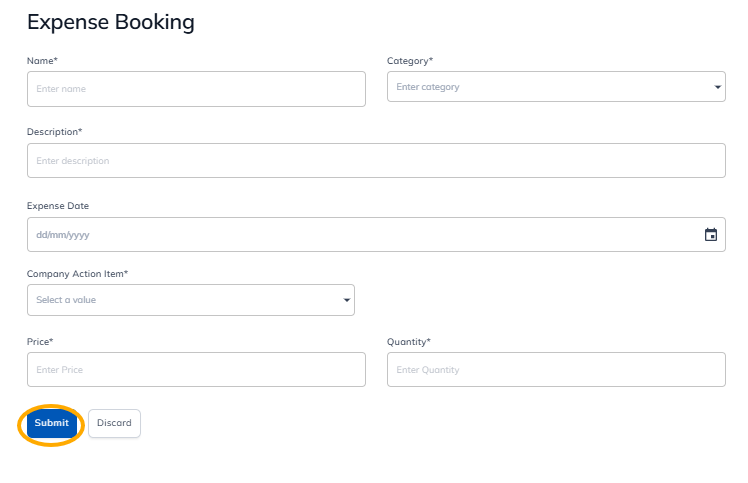 sharemundo links® solution core solution
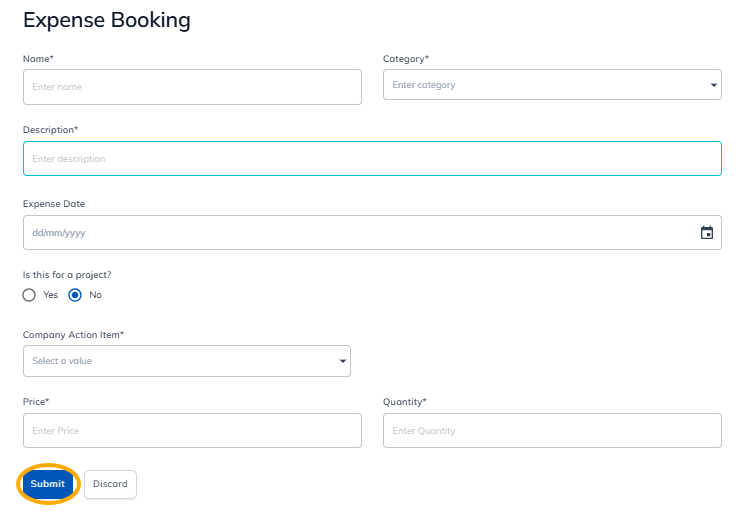 sharemundo links® solution company' type
Details of individual fields
- Name *: enter the name of your expense report
- Category *: select the category of your expense
- Description *: enter a description of your expenses
- Expense date: enter the date of your expense
- Is it linked to a project? *: Select 'No' if you are entering hours that relate to a corporate action.
- This field is only available if you have a sharemundo links® solution that includes project management.
- Click here for for details on how to enter hours for a project
- Company action *: select the action to which your expenses relate from the drop-down menu
- Price *: enter the unit price
- Quantity *: enter quantity
Step 4: The company administrator must approve your expense claim.
On the other hand, if you are the company administrator, your expense reports are not subject to approval and will be automatically approved.