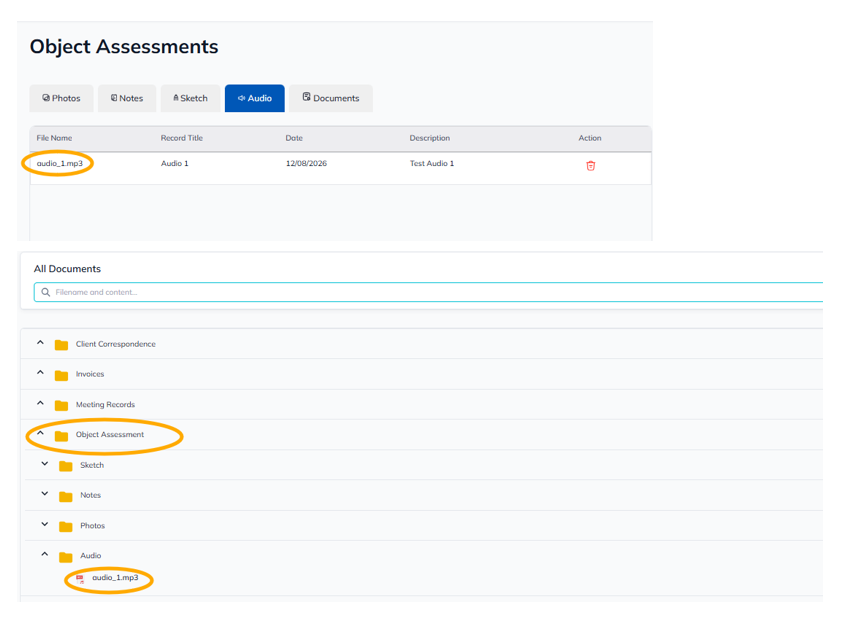
This feature is only available if you have a license for one of the sharemundo links® solutions of type 'Enterprise'.
Step 1: Once you've selected the project for which you want to add an audio recording, go to the 'Item evaluation' section in the left-hand menu ('Project management' section).
Step 2: Go to the 'Audio' tab.
Step 3: Click on 'Start recording'.
Step 4: Your computer's microphone will be activated. Record your audio and click on 'Stop recording' when you're finished.
Step 5: Enter the metadata relating to your recording and click on 'Save'.
Etape 6 : L’audio que vous venez d’enregistrer sera automatiquement ajouté à l’onglet ‘Audio’ dans le module ‘Evaluations d’éléments’ et dans le dossier ‘Audio’ (sous-dossier de ‘Evaluation d’éléments’) dans le module de ‘Documents’.