This feature is common to all sharemundo links® solutions.
Note You can only bill expense reports and timesheets that have already been submitted and approved in sharemundo links®.
Etape 1 : Allez à la section ‘Financier’ , sous section ‘Gestion de la facturation’ depuis le menu de navigation.
Etape 2 : Cliquez sur ‘Créer’ en haut à droite de votre écran.
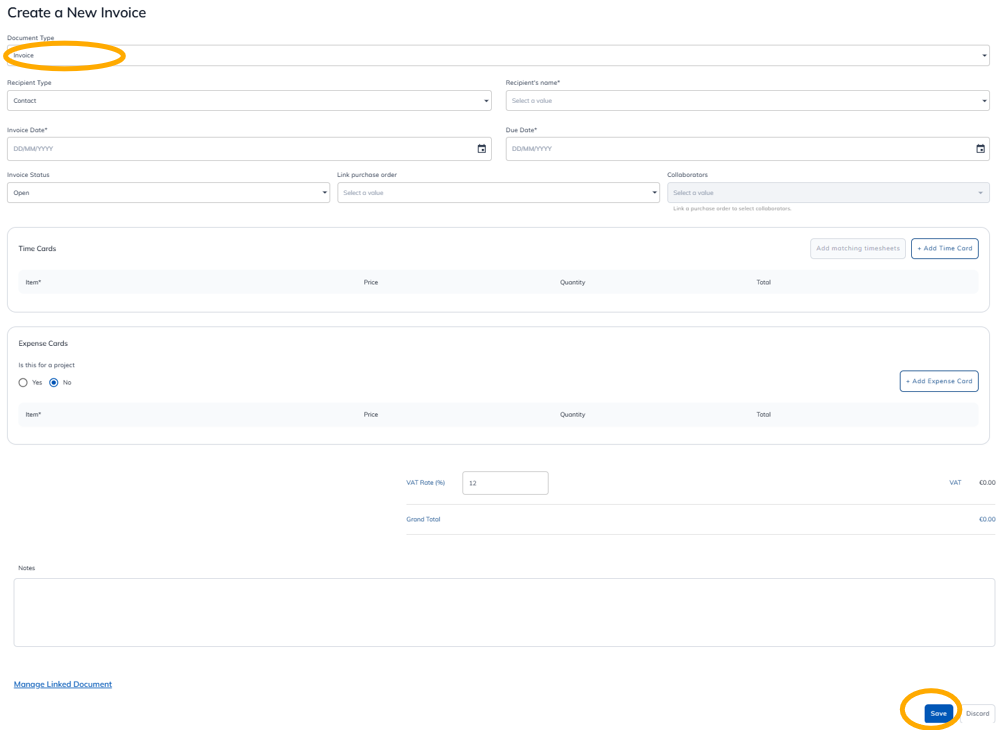
Etape 3 : Choisissez ‘Facture’ comme type de document, remplissez les différents champs et cliquez sur ‘Enregistrer’.
Notes:
- you'll find details of the various fields below the images.
- fields marked with * are mandatory.
 sharemundo links® solution core solution
sharemundo links® solution company' type
Details of individual fields
- Type de destinataire : sélectionnez si le destinataire de votre facture est une entreprise ou un contact
- Nom du destinataire * : sélectionnez le nom de l’entreprise ou du contact destinataire de la facture
- Invoice date *: Enter the invoice date or select it using the calendar.
- Due date *: enter the invoice due date or select it using the calendar
- Statut de la facture : sélectionnez le statut de la facture dans le menu déroulant
- Lier un bon de commande : sélectionnez un bon de commande existant ou créez en un
- Collaborateurs : si vous avez lié un bon de commande, vous pouvez sélectionner un ou plusieurs collaborateurs
- Ajouter un relevé d’heures : cliquez sur ‘Ajouter les relevés correspondants’ si les relevés ont été préalablement créés ou ‘+Ajouter un relevé d’heures’ pour en créer un nouveau. Répétez l’opération pour chaque relevé d’heure à ajouter à la facture
- Ajouter une note de frais : cliquez sur le bouton et sélectionnez la note de frais à ajouter à la facture. Répétez l’opération pour chaque note de frais à ajouter à la facture.
- Is it linked to a project? : Sélectionnez ‘Non’ si vous créer une facture liée à l’entreprise
- This field is only available if you have a sharemundo links® solution that includes project management.
- Click here for for details on how to create a project invoice
- Notes: Add notes if necessary
- Manage linked documents: you can link (or detach) documents to your invoice.