This feature is common to all sharemundo links® solutions.
Notes : Les captures ci-dessous concernent les actions d’entreprise, mais les principes sont les mêmes quel que soit l’élément auquel vous souhaitez lier la structure.
Step 1: Go to the 'Actions' section in the left-hand menu ('Company management' section for company actions, or 'Project management' section for project-related actions).
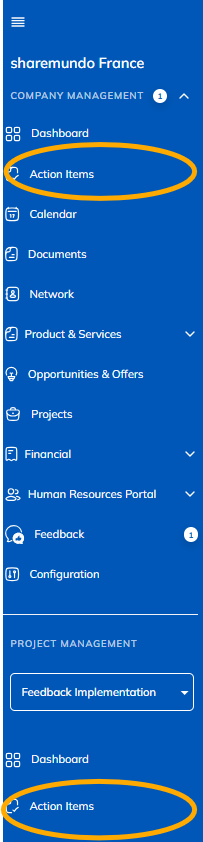
Notes:
- The screenshots below are for corporate actions, but the principles are the same for project actions. (if you have a sharemundo links® solution that includes project management).
- If your sharemundo links® solution includes project management, and if you wish to view the details of an action for a specific project, you must first select the project from the left-hand navigation menu.
- The procedure is the same whether you use the list, grid, or timeline view.
Step 2: Click the action button for the action you want to edit and select “Edit.”
Note: in the 'Calendar' view, click on an action to see its details. to see the details.
Step 3: Click on 'Add a subtask'.
Step 4: Enter the subtask details and click on 'Save changes'.
- Name: enter the name of the action;
- Notes: enter action details;
- Labels: Select a label from the drop-down list;
- Assignee: Select one or more employees from the drop-down list;
- Priority level: select from the drop-down list;
- Start and end dates: enter the estimated start and end dates of the subtask;
- The start and end dates of the subtask cannot exceed the start and end dates of the action on which it depends.
- Estimated date: Enter the estimated date for the subtask or select it from the calendar;
- Status: select the action status from the drop-down list;
- Reminder: select the time to send a reminder, if necessary;
- Allocated budget: enter the amount of the budget allocated to the action;
- Allocated hours: enter the number of hours planned for the action;
- Related documents: If you wish, you can attach one or more documents to the subtask.
The number of subtasks for each action is shown in the list.