This feature is common to all sharemundo links® solutions.
Step 1: Click on your initial in the upper-right corner of the screen and select “My Requests.”
Step 2: Click the “My Leave Requests” tab, then click “Add a New Request” in the upper-right corner of the table.
Step 3: Select whether the request is for telework or absence. Fill in the various fields and click on 'Submit'.
Note The fields are different depending on the type of request (telework or absence). You'll find details below the images.
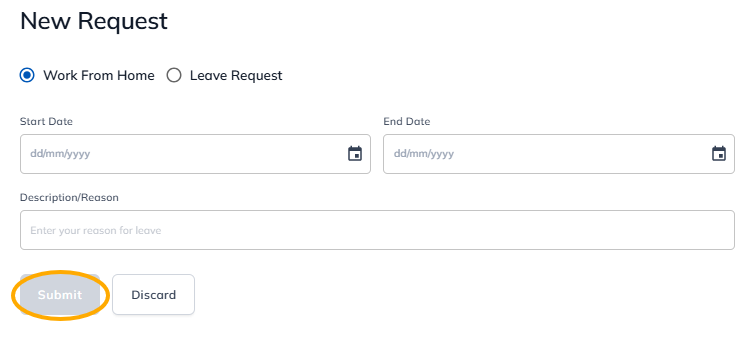 Telework request form
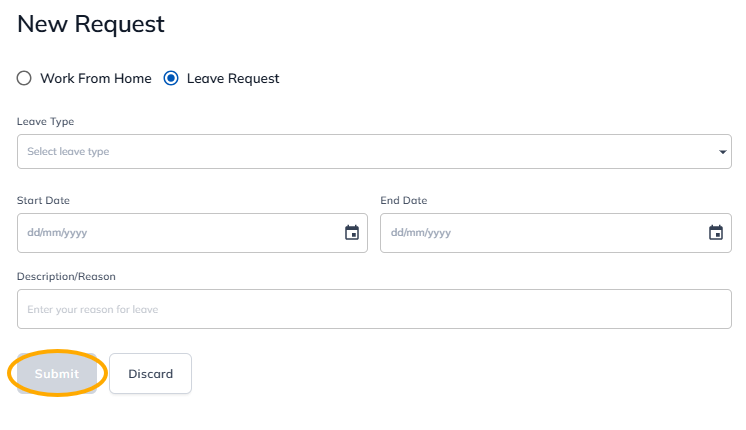 Absence request form
Details of individual fields
- Telework request :
- Start Date: Enter the date of the first day of remote work, or use the calendar to select it.
- End date: Enter the date of the last day of remote work, or use the calendar to select it.
- Description / Reason: Enter a reason for your request.
- Absence request :
- Type: select the type of absence from the drop-down menu.
- Start Date: Enter the date of the first day of remote work, or use the calendar to select it.
- End date: Enter the date of the last day of remote work, or use the calendar to select it.
- Description / Reason: Enter a reason for your request.
Step 4: The administrator or the person in charge of human resources must approve your leave request. If you are the company administrator, your leave requests are approved by the company president or the HR manager.