This feature is common to all sharemundo links® solutions.
Step 1: Go to the 'Documents' section in the left-hand menu ('Corporate Management' section for corporate documents or 'Project Management' section for project documents).
Notes:
- The screenshots below are for corporate documents, but the principles are the same for project documents. (if you have a sharemundo links® solution that includes project management).
- If your sharemundo links® solution includes project management, and you wish to upload documents to the 'Project documents' section for a specific project, you must first select the project from the left-hand navigation menu.
- New documents can only be added from the 'Folders' view of documents.
Step 2: Click on the add file icon on the row of the folder or sub-folder to which you wish to add a document.
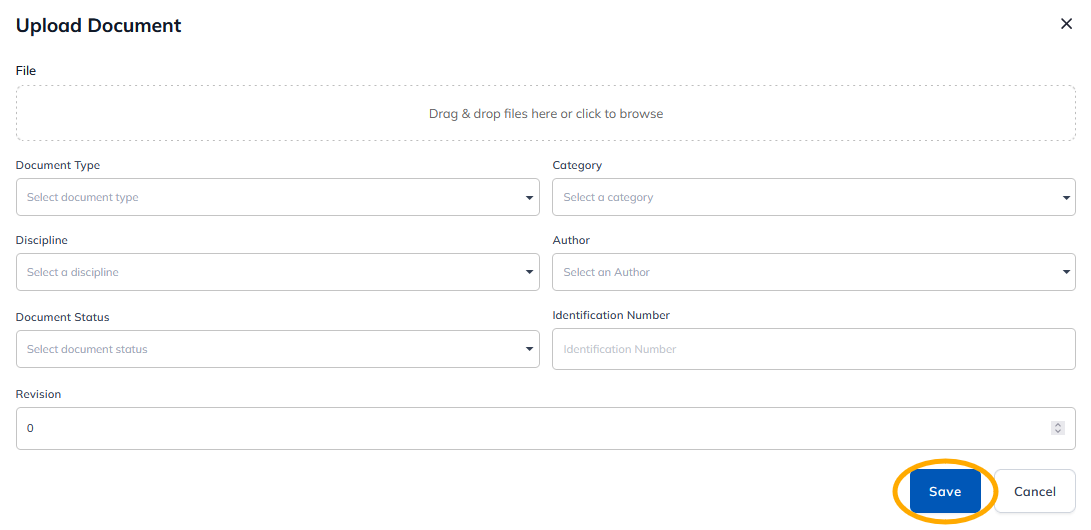
Step 3: Click on 'Choose file' to select the file to be uploaded, fill in the metadata and click on 'Save'.
- Document type Select the document type from the drop-down list.
- Category : Select the document category from the drop-down list.
- Discipline : Select the document's subject area from the drop-down list.
- Author select the document author from the drop-down list.
- The author of the document must be one of your sharemundo links® contacts/connections.
- Document status Select status from drop-down list.
- Identification number: enter the document reference.
- Revision: Enter the revision number for the document.